
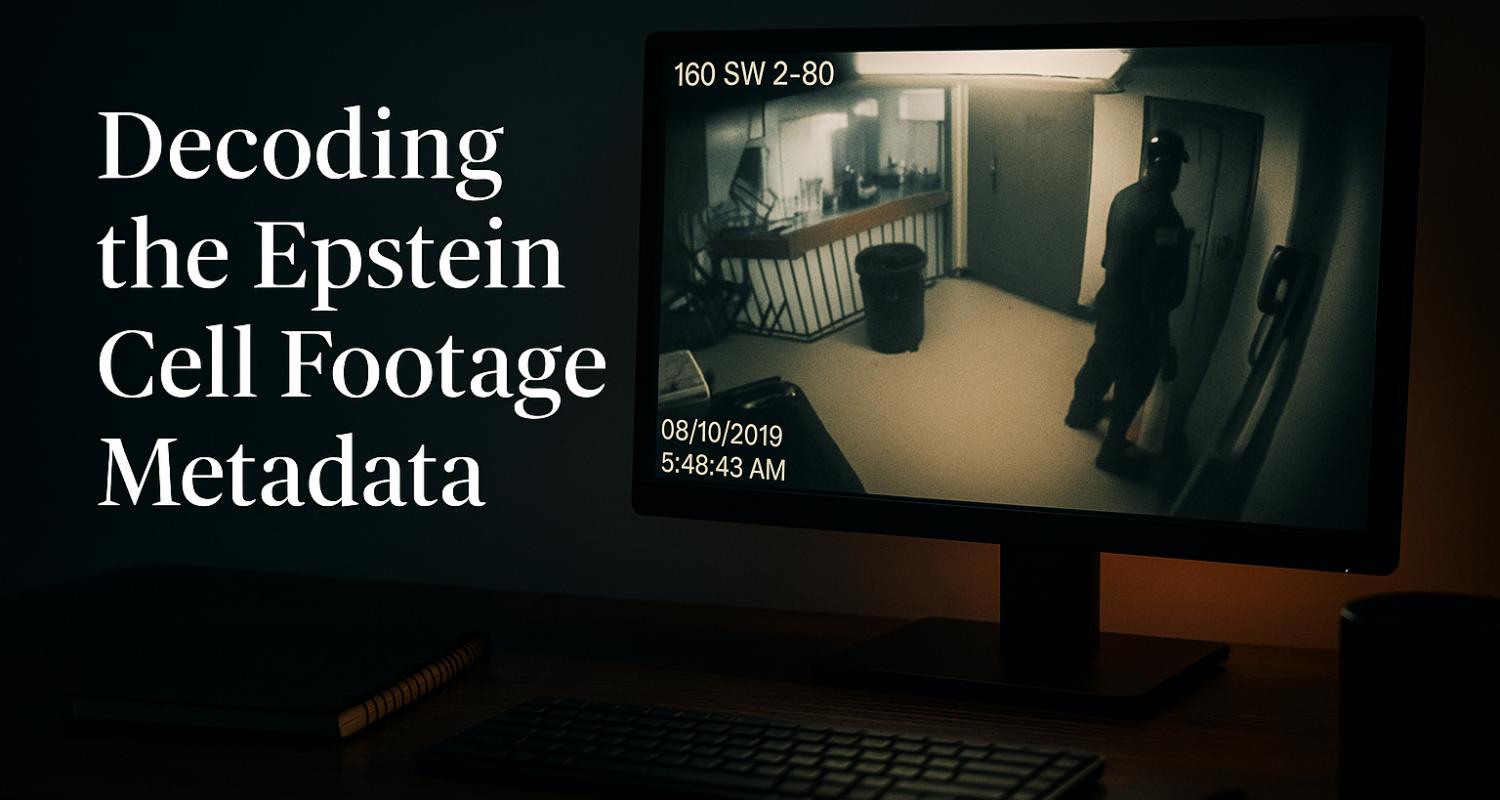
In the summer of 2025, the Department of Justice released what it described as raw surveillance footage from outside Jeffrey Epstein’s jail cell. Within days, reporters and independent analysts noticed something the frame-by-frame inspection of the video did not make obvious: the metadata embedded inside the file said it had been opened in Adobe Premiere, exported through Adobe Media Encoder, and assembled from multiple clips.
This article is not to argue what the edits mean, but to show you exactly what fields in the file made the editing visible, on your own iPhone, using the Photo Investigator app. So go ahead and download the app now and follow along.
None of this analysis runs in the cloud. The file does not leave your phone. Photo Investigator reads the metadata locally and shows you the fields exactly as they are stored in the file or on iOS (to surface even more metadata)
1. Download the Photo Investigator

2. Download the Epstein cell video
https://www.justice.gov/video-file1
from this release https://www.justice.gov/opa/media/1407001/dl?inline
3. Open the video in the app
Open the Photo Investigator, tap the button in the bottom left to open the photo picker, and when prompted, select “Allow Full Access.” On the Albums tab, go into the Recents tab and if you have just downloaded the video, you should see it here. You can also sort the album by “Length” and the 10 hour long video will definitely stick out!
The Four Fields to Look At
The Photo Investigator, when a photo is opened, has tabs you can select to quickly view summarized metadata. Some of the metadata we will look at shows in the main “info” drawer once you open the video, or you can navigate to “Metadata” -> “View All” -> “XMP” to see all of these.

1. “Creator Tool”
This row shows the exact software name and version that produced the file. On the DOJ video, it reads (depending on the specific release file):
Adobe Adobe Media Encoder 2024.0 (Windows)
A native surveillance system writes its own software identifier here (often something like the camera vendor’s name and firmware version). Adobe Media Encoder is the export pipeline for Adobe Premiere. Its presence in this field means the file was produced by a desktop video editor, not exported directly by the source camera system.
2. “Edit Sessions” (in the Info Tab or Metadata -> View All)
This is a count of save events, plus the date of the last save. The History field is a log Adobe applications keep of every save event during editing. On the DOJ video, the History field shows multiple save events on consecutive dates.
3. “Source Clips” (in the Info Tab or Metadata -> View All)
This row shows all source files that Premiere combined into the final exported video. On the DOJ video, the exported “raw” file is not a continuous capture, but combines four files.
4. “Project File” (in the Info Tab or Metadata -> View All)
The basename of the Adobe Premiere or After Effects project file used to produce the export.
On the DOJ video, the project file shows:
mcc_4.prproj
The .prproj extension is unique to Adobe Premiere project files. The presence of any project filename in this field, alongside the Creator Tool and Source Clips entries above, ties the export to a specific Premiere session on someone’s editing workstation.
Why the Metadata Was the Decisive Layer
Any one of these four fields, in isolation, could have a benign explanation. Lots of legitimate video processing pipelines pass files through Adobe tools for color correction, format conversion, or aspect ratio fixes. Re-encoding through Media Encoder is not, by itself, evidence of anything sinister.
Where the metadata becomes decisive is the combination. When you have:
- A Creator Tool that’s a desktop video editor, and
- An Edit Sessions count above one with timestamps spread across multiple days, and
- A Source Clips list with multiple ingredient files, and
- A named Premiere project file
… the file is clearly an edited assembly. The question shifts from “was this edited?” to “what was added, removed, or reordered?” Pixel inspection then has a target: look at the boundaries between source clips, look for splice points at the cuts recorded in the project history. The metadata doesn’t answer the second question, but it tells you that the question is on the table.
One last thing
In the video, the clock on-screen skips from 11:58:58 PM to 12:00 AM, there’s a missing minute!
Get Photo Investigator

The Photo Investigator App reads XMP provenance fields, including Creator Tool, Edit Sessions, Source Clips, and Project File, on any video brought into the app on iPhone, iPad, or Mac. You can also detect if a photo or video was generated by AI, as the main generative AI tools add C2PA metadata.