
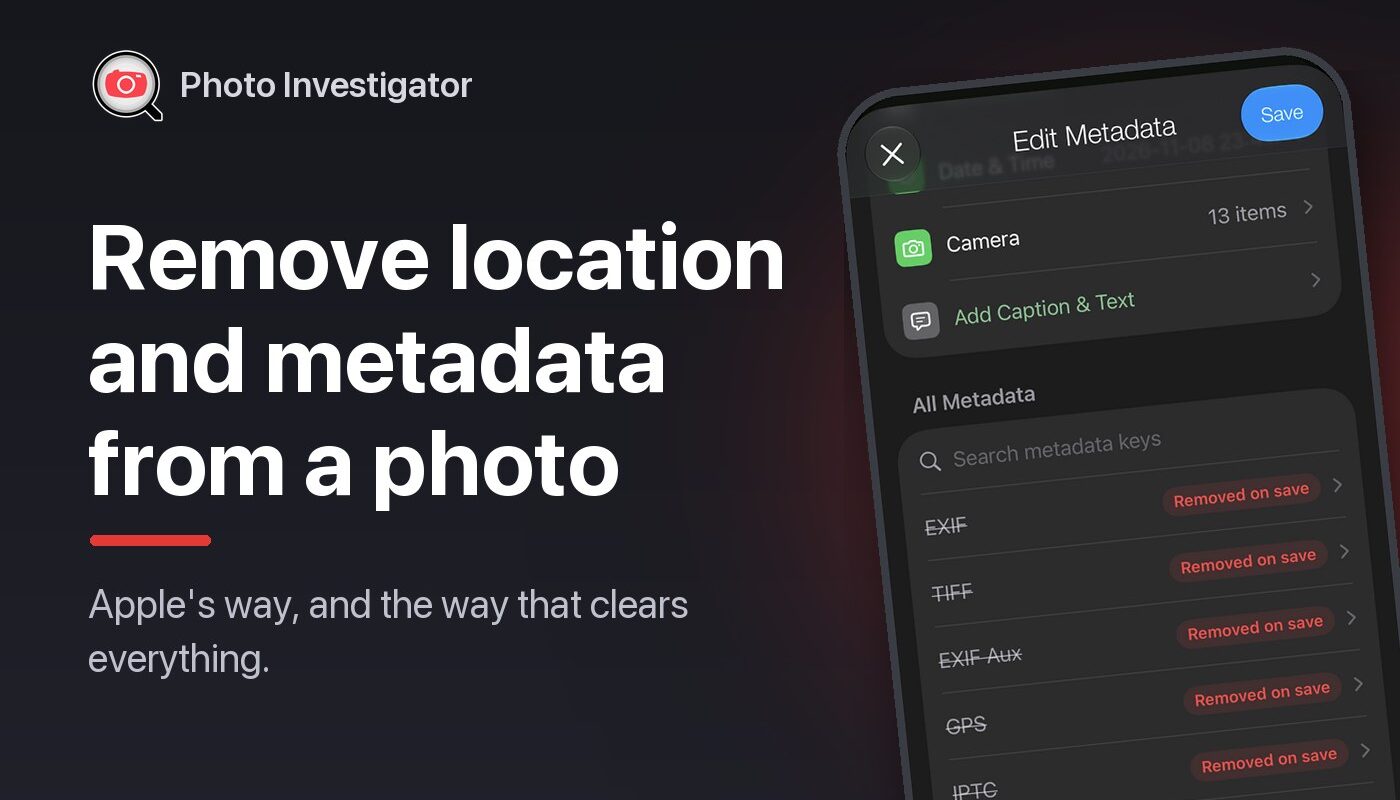
There are two ways to do it on an iPhone, and they do different things.
Apple’s built-in way covers location only. To send a photo without its location, open it in Photos, tap Share, tap Options at the top of the share sheet, turn off Location, and send. The photo in your library keeps its location. To take the location off the library photo itself, swipe up on it, tap Adjust, and choose No Location. Either way the date, the camera details and everything else stay in the photo.
Removing it from the file covers everything stored in the photo: GPS position and altitude, dates, device and camera details, captions, copyright and creator fields. Photo Investigator removes all of it in one step, from one photo or several. Viewing metadata is free. Removing it is a one-time in-app purchase.
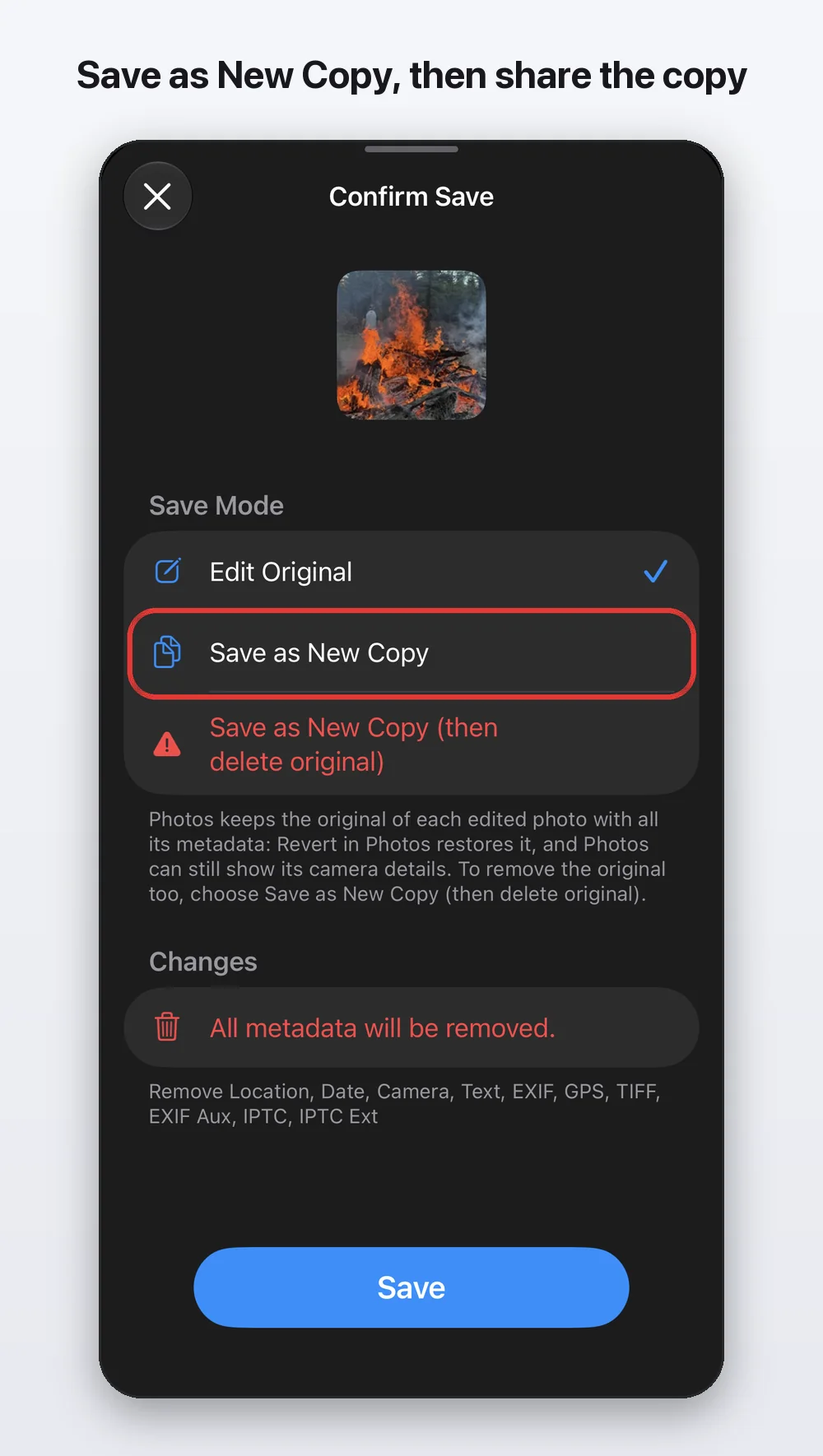
One trap to know about: if you edit the original in place, Photos keeps the untouched original behind it. Save a new copy and share that.
Removal does not touch the picture itself. A street sign or a face in the frame is not metadata, and it stays.

Remove the location with Apple’s Share option (free)
- Open the photo in Photos and tap Share.
- Tap Options at the top of the share sheet.
- Turn off Location, close Options, and send the photo.
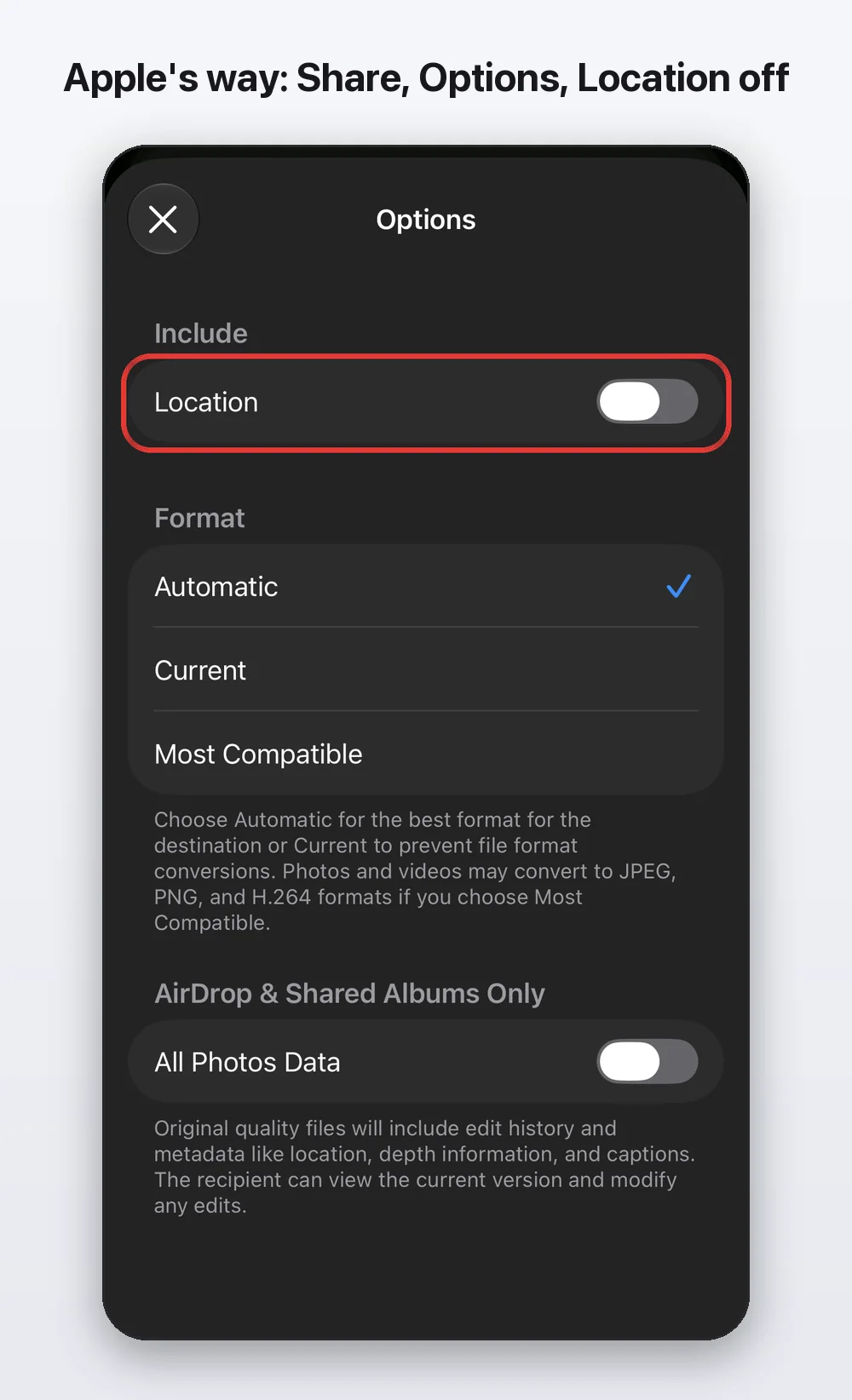
This affects only the copy you send this time. The photo in your library is unchanged.
Remove all metadata from a photo, step by step
- Open Photo Investigator and open the photo.
- Tap Metadata at the bottom right, then Edit.
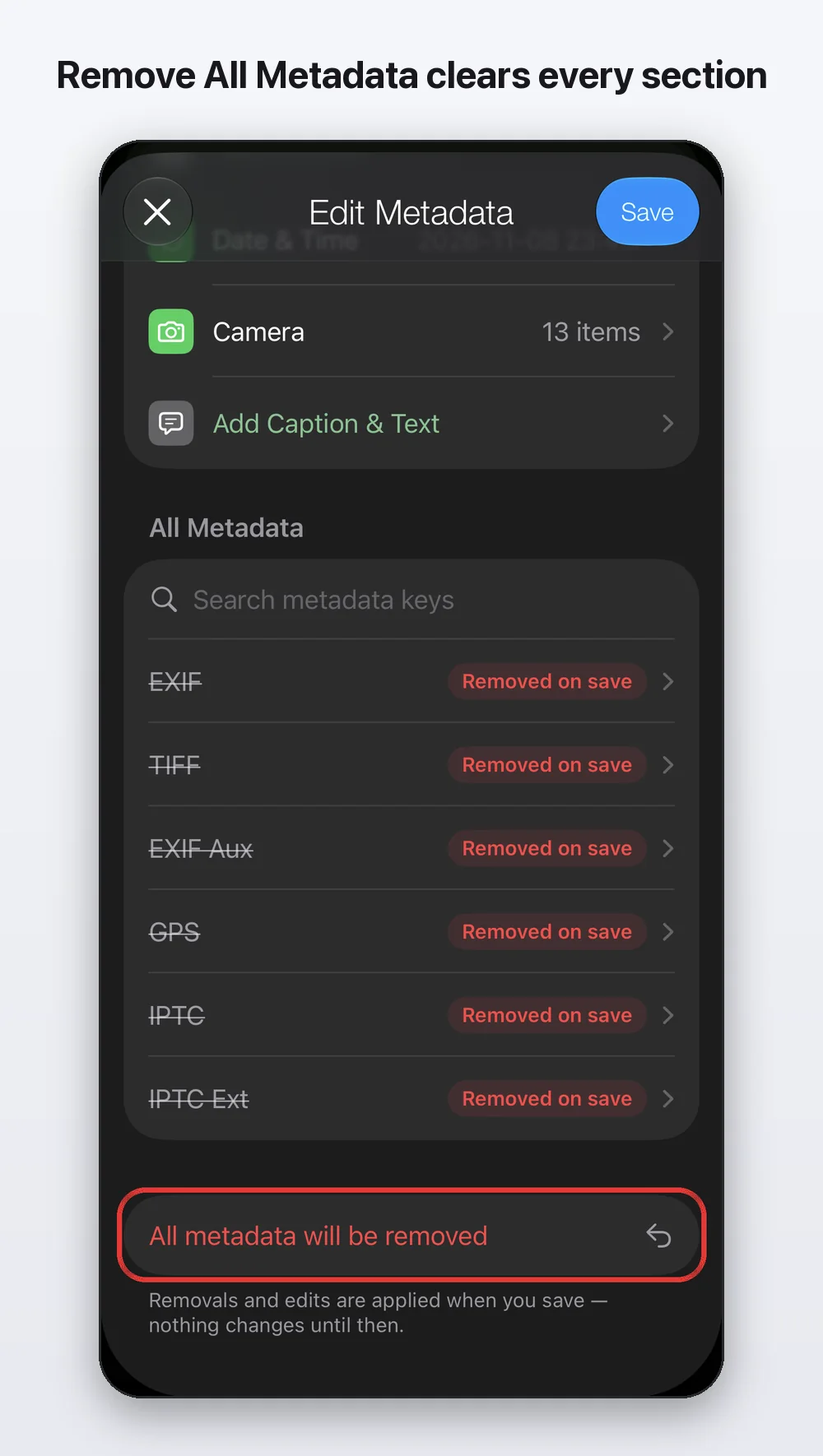
- On the Edit Metadata screen, tap Use a Template and choose Remove All Metadata. Every section is now marked “Removed on save”.
- Tap Save. On the Confirm Save screen, choose Save as New Copy. To get rid of the original as well, choose Save as New Copy (then delete original). Edit Original changes the photo in place, and Photos keeps the original with all its metadata behind it.
- Share the new copy.
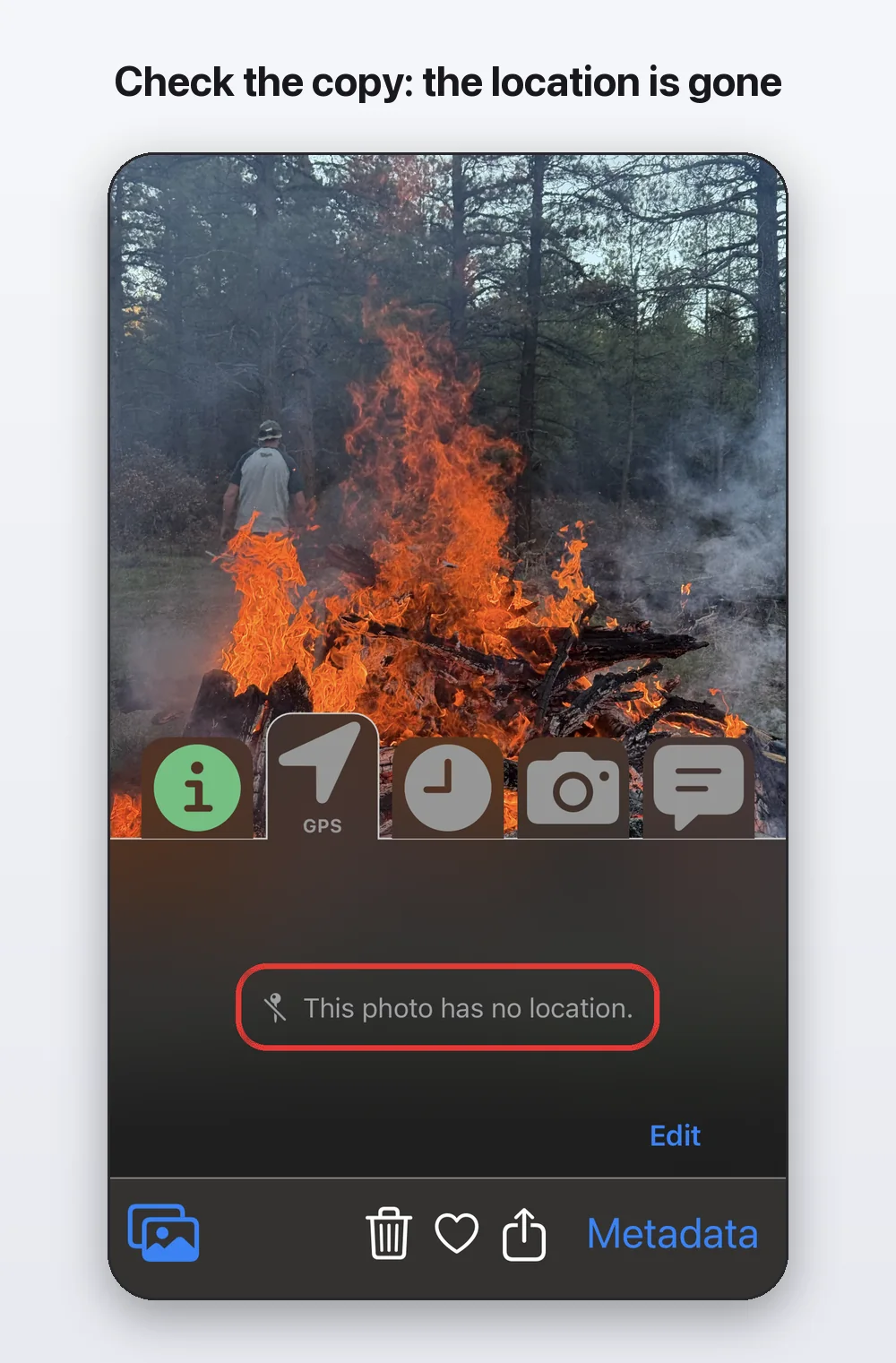
- Check it. Open the copy and tap the location tab. It should say “This photo has no location.”
Remove it from several photos at once
Select the photos first. Then tap Metadata, then Edit, apply the Remove All Metadata template, and save. The Confirm Save screen lists what will be removed before anything changes.
Stop adding location to future photos
Go to Settings > Privacy & Security > Location Services > Camera and choose Never. New photos will have no location. Photos you already took keep theirs until you remove it.
Frequently asked questions
Can you change the metadata on a photo?
Yes. Photos lets you adjust the date, time and location. An app like Photo Investigator also edits fields Photos does not offer, such as copyright, creator, caption and camera details.
How do I remove the time stamp from a photo on my iPhone?
Apple’s Share option does not remove it. In Photo Investigator, the Remove All Metadata template clears the dates along with the location, camera and text fields.
Can you turn off metadata on iPhone photos?
Only location, and only for new photos: set Camera to Never under Location Services. The camera still writes dates and device details into every photo, so remove those from a photo before you share it.
How do I know the metadata is really gone?
Open the saved copy in Photo Investigator and look at the location, date and camera tabs. The Photos info panel shows only a few fields, so it is a weak check.
Does this hide what is in the picture?
No. It removes data stored in the file. Anything visible in the image stays.
Viewing is free. Removing metadata is a one-time in-app purchase.
Related: what is inside your iPhone photos, how to add or change a photo’s location, and which of your photos have GPS locations.