You see an image. It looks real. A crowd. A signature. A screenshot of a text message. Your gut says something is off, but you can’t point to why.
The good news: you don’t have to trust your gut. AI-generated images almost always leave traces in their metadata. With Photo Investigator, your iPhone can read those traces and flag the image before you share it, screenshot it, or build an argument around it.
This post explains exactly how that detection works: three layers, each targeting a different standard that AI generators write into image files.
Why Your iPhone Already Knows
Every digital image is more than pixels. Embedded in the file is a structured record of how the image was created: which device, which software, when, where, and increasingly, by what process.
Real cameras fill dozens of these fields automatically. A photo taken on an iPhone 15 will have a Make of Apple, a Model of iPhone 15 Pro, a FocalLength, an ExposureTime, a LensModel, GPS coordinates if location was enabled, and a DateTimeOriginal that matches the moment the shutter fired.
AI generators don’t have a shutter. They have a model. And the better-behaved ones are now required to say so.
Photo Investigator reads all of this metadata, on-device, in under a second. It runs a dedicated detection pass that checks three specific signals.
Layer 1: C2PA Content Credentials
What it is: C2PA (Coalition for Content Provenance and Authenticity) is an open standard backed by Adobe, Microsoft, OpenAI, Google, and Leica. It attaches a cryptographically signed provenance manifest to an image file. That manifest records the full edit and creation history, including whether the image was generated by AI.
What it looks like: When an image has C2PA metadata, Photo Investigator shows a “Content Credentials” section in the metadata viewer. The manifest contains a list of actions, one of which may be c2pa.created with an originalMediaType of application/ai.generated or a softwareAgent that identifies the generator (e.g., Adobe Firefly, DALL-E, Stable Diffusion).
In 8.2, Content Credentials also name the generator, such as OpenAI, for newer manifests.
Who uses it: Adobe Firefly writes C2PA manifests on every image by default. OpenAI’s DALL-E 3 does too. If you download an image from these tools and open it in Photo Investigator, you’ll see the manifest. The chain of trust is intact unless the file has been recompressed or screenshot.
Why it matters: C2PA is the gold standard for provenance. It’s signed, so it can’t be quietly altered. When you see a valid C2PA manifest in Photo Investigator, you’re reading a cryptographic assertion that has not been tampered with since the image was generated.
For a broader look at how image metadata standards work, see What is “Maker Apple” Metadata in iPhone Photos?, the same EXIF layer that records device info is part of the same metadata ecosystem.
Layer 2: XMP DigitalSourceType
What it is: XMP-Iptc4xmpExt:DigitalSourceType is a controlled vocabulary field from the IPTC photo metadata standard. It describes how the image was created. The relevant value is trainedAlgorithmicMedia, IPTC’s official term for images generated by AI models trained on existing content.
| Value | Meaning |
|---|---|
originalDigitalCapture | Captured by a real camera |
trainedAlgorithmicMedia | Generated by an AI model trained on other content |
compositeSynthetic | Composite of AI-generated elements |
digitalArt | Digital illustration without AI training |
Who uses it: Platforms that read this field can label an image set to trainedAlgorithmicMedia as AI-made.
Why it’s complementary to C2PA: C2PA is signed and cryptographically strong, but some generators don’t use it. XMP DigitalSourceType is simpler: a plain metadata field, no signing involved, but it catches generators that don’t implement the full C2PA pipeline. The two layers cover different parts of the generator landscape.
Layer 3: EXIF Fingerprints (the Absence Problem)
The first two layers require generators to cooperate. This third layer doesn’t. It looks at what’s missing.
A real camera photo taken on any modern smartphone will have:
FocalLength(e.g.,26mm)ExposureTime(e.g.,1/120)ISOSpeedRatings(e.g.,125)LensModel(e.g.,iPhone 15 Pro back triple camera 6.765mm f/1.78)GPSlatitude and longitude (if location was on)MakeandModelset to the device manufacturer and nameDateTimeOriginalthat matches a real moment in time
An AI generator has none of these. There’s no lens, no shutter, no GPS, no exposure. The best it can do is fake them, and most don’t bother.
What AI generators often write instead:
Softwareset to the generator name (e.g.,Midjourney)XMP:CreatorToolset to a pipeline identifier- PNG
tEXtchunks with prompt and seed data (Stable Diffusion and ComfyUI output images this way) - A
DateTimeOriginalthat doesn’t match any other timestamp in the file
Photo Investigator looks for the combination: a meaningful CreatorTool or Software field naming a known AI generator, plus the absence of the camera-specific fields that real photos always carry. Alone, each absence is inconclusive. Together, the pattern is reliable. A photo with no focal length, no shutter speed, no lens model, and a CreatorTool of Stable Diffusion XL is not ambiguous.
For a thorough look at what these metadata fields mean, the xattr Metadata: Extended File Attributes post covers the lower-level metadata layer that Photo Investigator also reads.
What the AI Badge Means in Photo Investigator
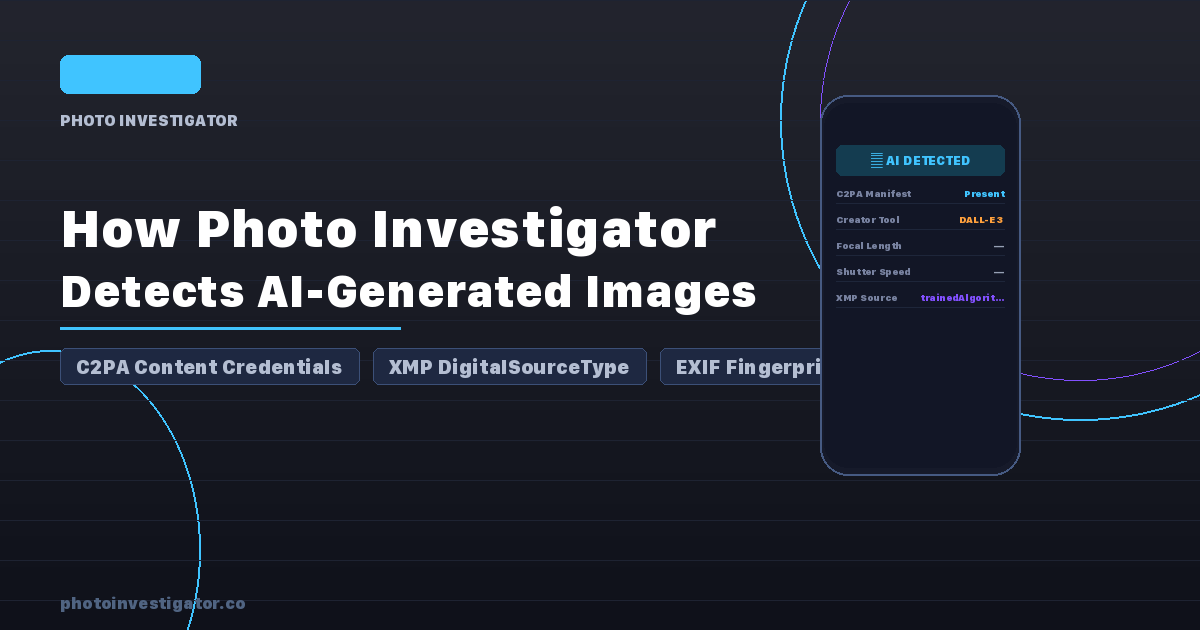
When any of the three layers fires, Photo Investigator shows an AI indicator in the photo viewer. Tapping it explains which signal triggered the flag and shows you the raw field so you can verify it yourself.
When a signal is found, the photo gets an AI Generated section. It names the generator when it can and lists each piece of metadata that triggered the flag. If nothing is found, the section does not appear, and that does not mean the image is real.
What Detection Can’t Do
The metadata approach has real limits. It’s worth being direct about them.
Screenshots break everything. A screenshot of an AI image is a new capture. The iPhone writes fresh camera-style metadata (or no metadata at all) to a PNG. C2PA signatures, XMP fields, and EXIF fingerprints from the original don’t survive a screenshot. If someone screenshots a Midjourney image and sends it to you, Photo Investigator will see a blank PNG with iPhone screen-capture metadata.
Recompression strips signals. Downloading an image through most social media platforms recompresses it. JPEG recompression can strip XMP fields. Some platforms actively remove C2PA data. If the image you received has been through a social media CDN, the provenance data may be gone.
Stripping is possible. Anyone who knows what they’re doing can manually remove these fields before sharing. The metadata approach is not adversarial-proof. It detects compliant generators and careless actors; it does not detect sophisticated manipulation.
Photo Investigator flags what it can see. That’s still useful, particularly for images that came directly from a generator, were shared via AirDrop or email (no CDN recompression), or were downloaded directly from a platform that preserves metadata.
What’s Next
Photo Investigator handles C2PA, XMP DigitalSourceType, EXIF fingerprints and PNG text chunks. One more signal is on the roadmap:
Better handling for recompressed images. When C2PA data has been stripped by a CDN, there may still be indirect signals: unexpected color profile data, non-standard quantization tables, or suspicious timestamp combinations. This is harder to do reliably without false positives, but it’s the right direction for a second generation of detection.
Try It on Your Photos
Photo Investigator reads all three layers on-device with no account, no upload, and no network request. Open any image in the app and the AI detection pass runs automatically.
The metadata is already there. Photo Investigator just shows it to you.