
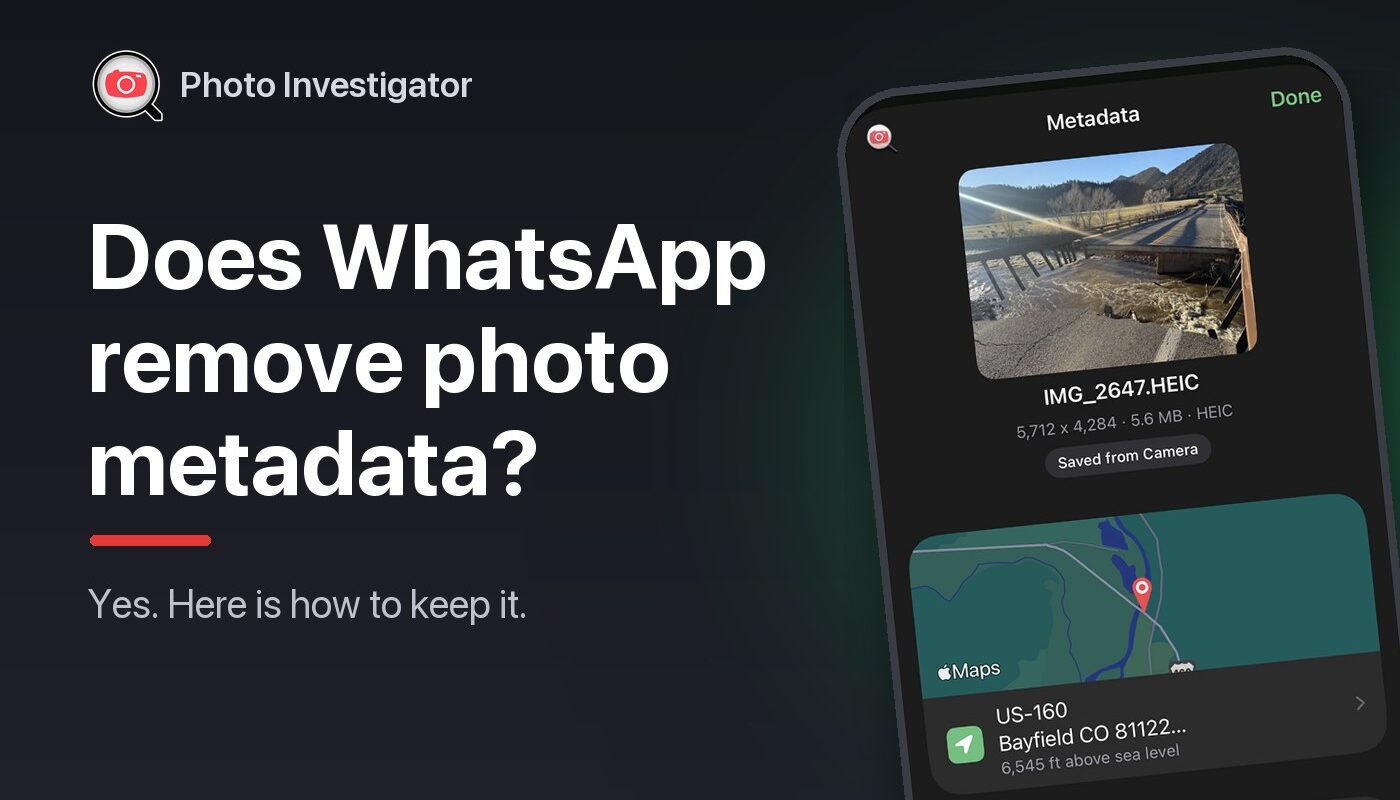
Yes. When you send a photo the normal way, WhatsApp compresses it and removes the hidden data: the GPS location, the date the photo was taken and the camera details. HD quality does not change that. Send the same photo as a document and it arrives with all of it still inside.
If you are on the receiving end, a normal WhatsApp photo cannot tell you where or when it was taken. Further down: what you can still work out, and how to ask for the original.
| How you send it | Location | Date taken and camera |
|---|---|---|
| Normal photo | Removed | Removed |
| HD quality | Removed | Removed |
| Document | Kept | Kept |
I tested all three on an iPhone and opened each received photo in Photo Investigator. Only the document still had its location, date taken and camera details.
Send a photo on WhatsApp with its location and date
- Open the chat in WhatsApp and tap +.
- Tap Document.
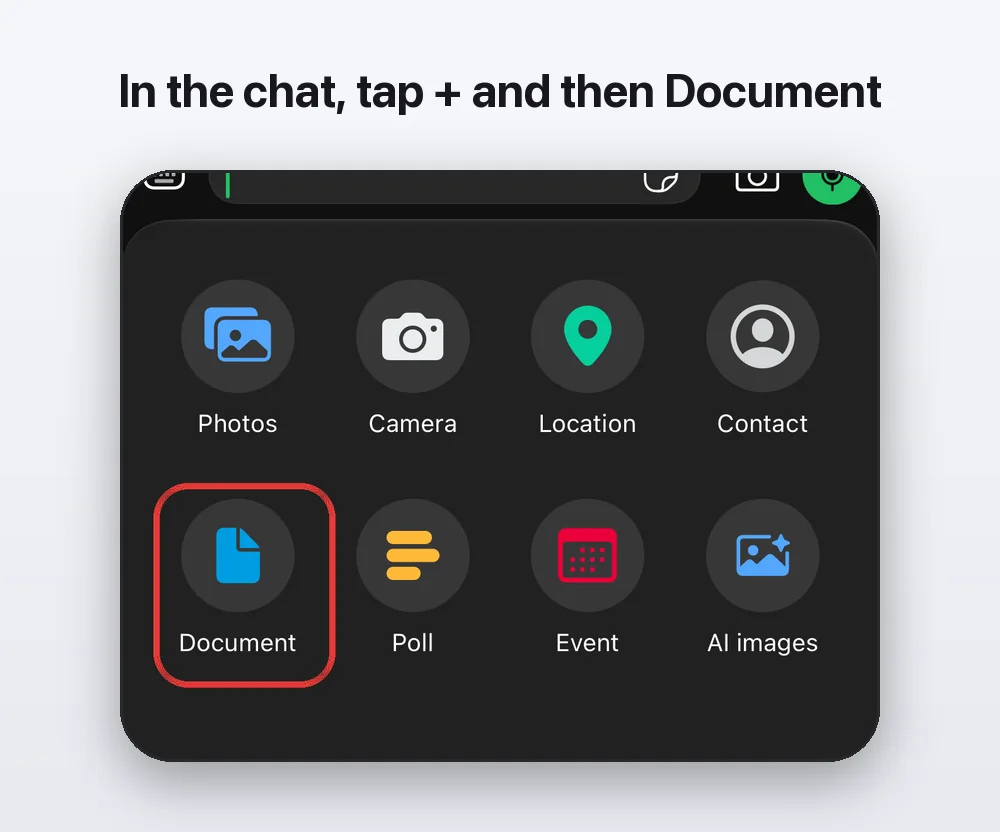
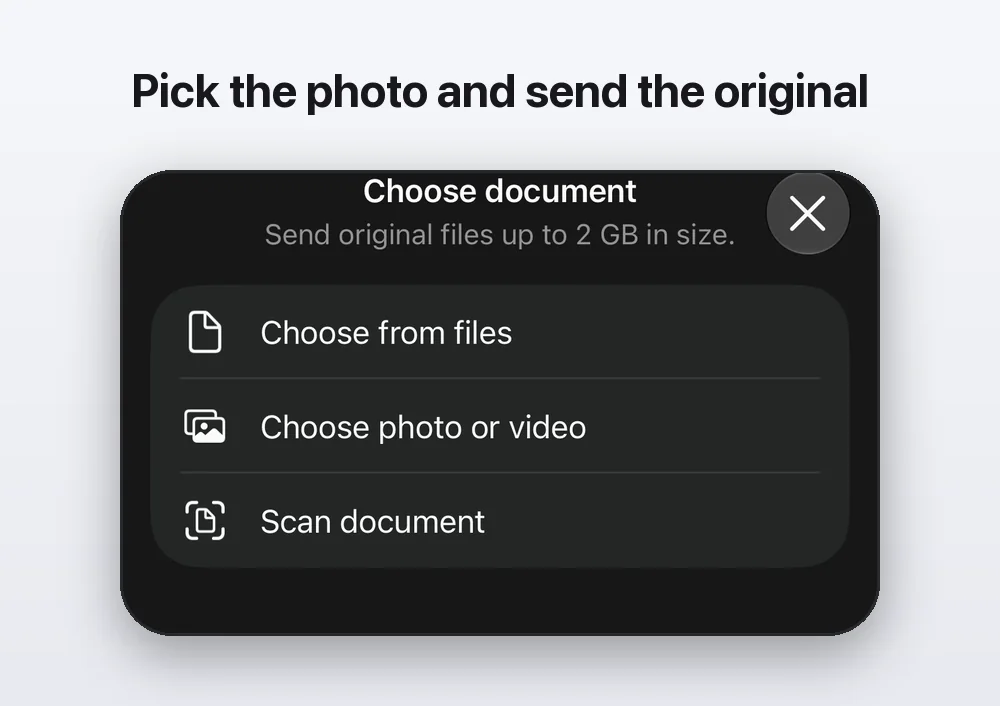
- Pick the photo with Choose photo or video, or with Choose from files if it is in the Files app. In my test both kept the metadata.
- Send it.
The person on the other end gets the location (if your Camera app had Location Services on when you took the photo), the date taken and the camera details.
Before you send, think about who is on the other end. A location can be a home address. Share it with family following your trip, and leave it out when the chat is a group of strangers. To send a photo with nothing attached, see how to remove location and metadata from a photo.
Check what arrived
Not sure the data survived? You can check a photo without leaving WhatsApp. You need Photo Investigator installed. Viewing is free.
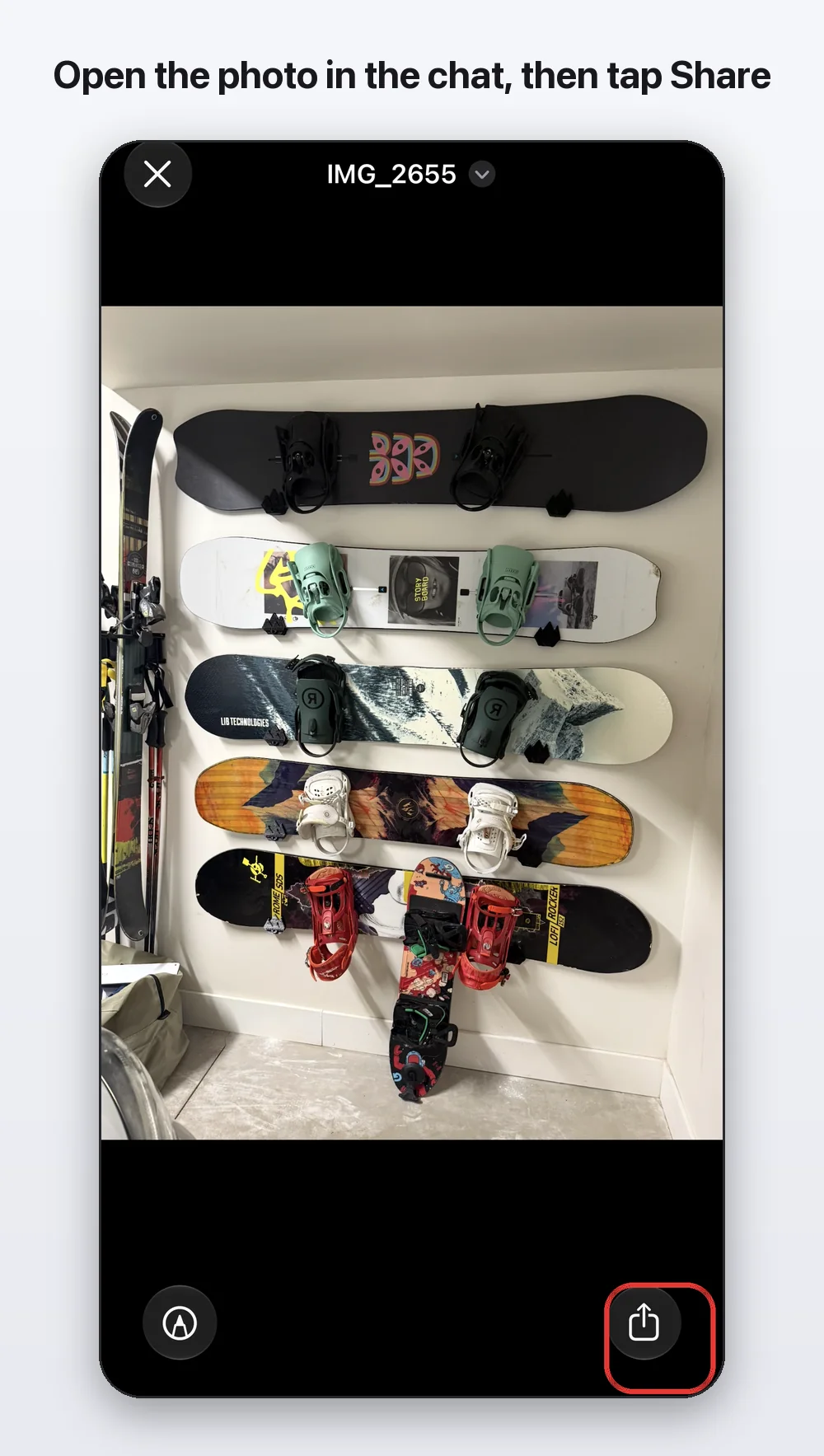
- Tap the photo in the chat to open it.
- Tap the Share button in the bottom corner.
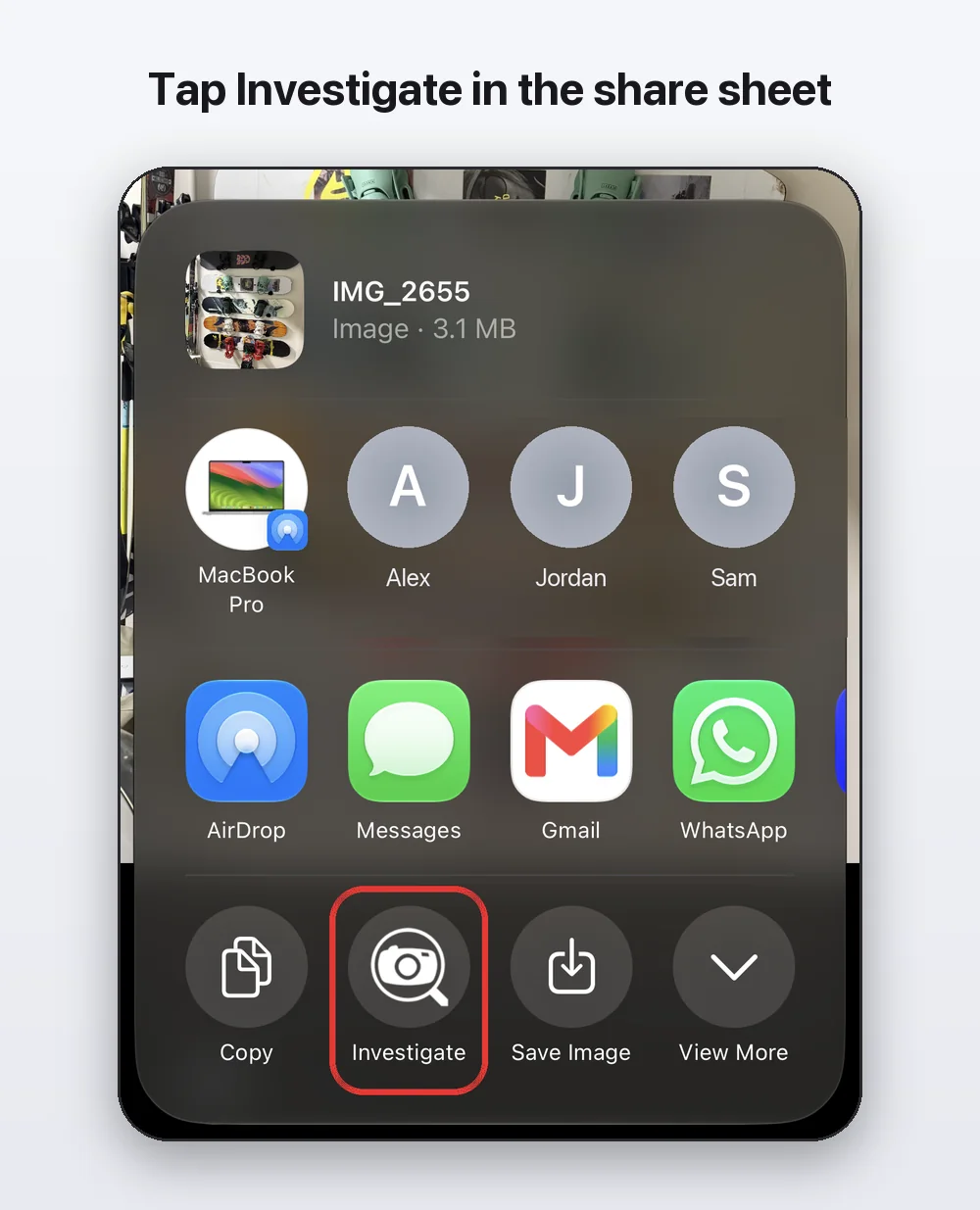
- Tap Investigate in the bottom row of the share sheet.
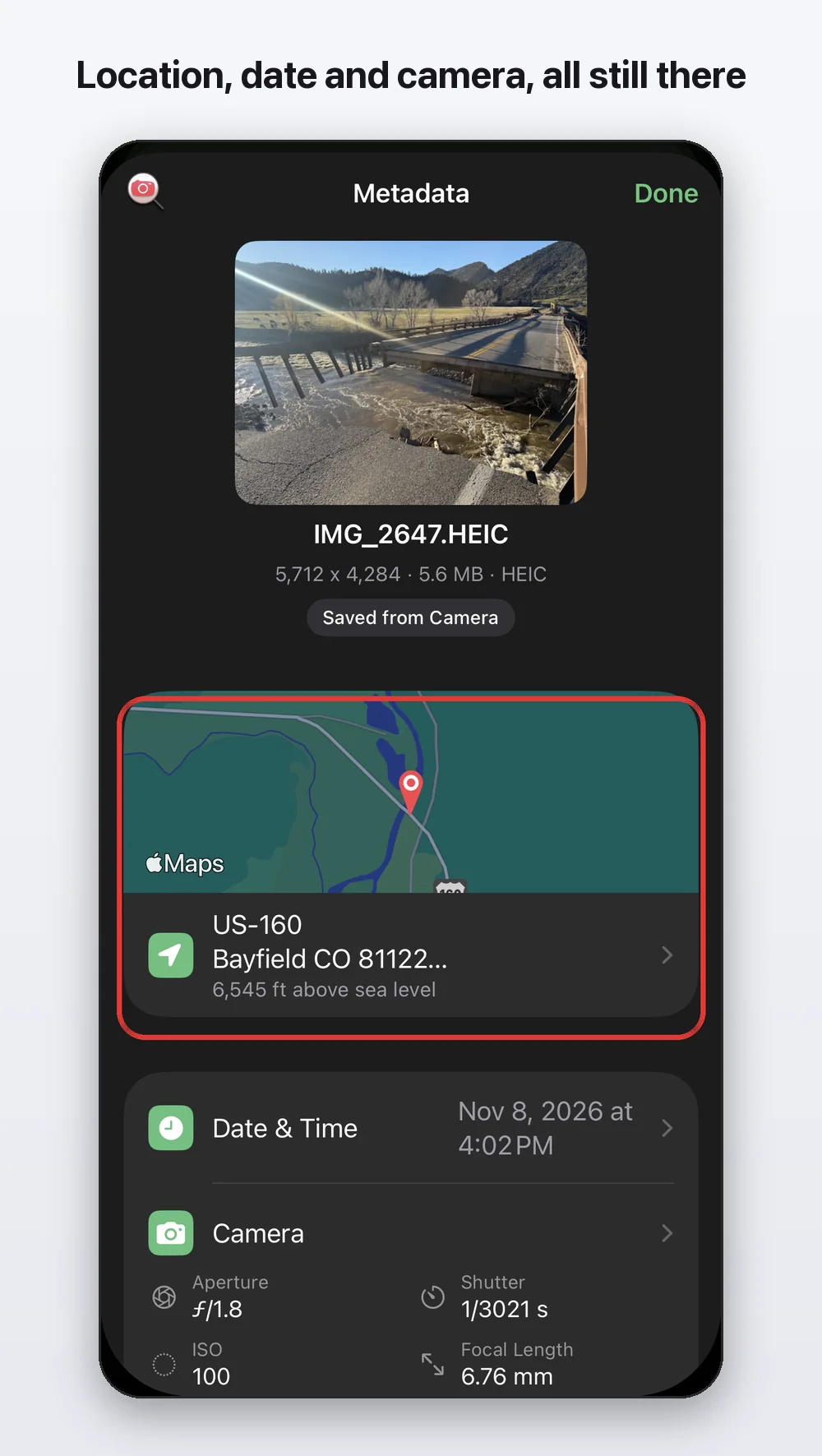
- Read the sheet. A photo that kept its data shows a map, the place name, the altitude, the date taken and the camera settings.
A photo that went through the normal WhatsApp send has none of those fields. The sheet offers Add Location and Add Date & Time where the data should be.
You can also save the photo and swipe up on it in Photos. A photo with its data shows a map and a camera line.
How to tell when a photo you received was taken
This is the awkward one. If someone sent you a picture the normal way, the date it was taken is gone from the file. The file name will not help either: a photo saved from WhatsApp gets a random name, such as 54331cb3-16e3-45b0-8875-16ece24ac552.jpg, with no date in it.
The fix is to ask for the original as a document. A one-line message works: “Can you send that again as a document? I need the date.” Then open it with Investigate, or in Photos, to see the date taken, the camera and the location.

Viewing a photo’s full metadata is free. Editing or removing it is a one-time in-app purchase.
Frequently asked questions
Can I get metadata from a WhatsApp photo?
Only if it was sent as a document. A photo sent the normal way arrives without its location, its date taken or its camera details. To see what a photo still has, open it in the chat, tap Share, and tap Investigate.
Does WhatsApp remove metadata?
Yes, from photos sent the normal way, and from HD photos too. Sent as a document, the photo keeps its metadata.
How do I send a photo with its location on WhatsApp?
In the chat, tap +, tap Document, pick the photo with Choose photo or video or Choose from files, and send it. The location is only there if Location Services was on for the Camera app when you took the photo.
How can I tell when a photo sent to me was taken?
If it came as a normal WhatsApp photo, you cannot tell from the file: the date taken has been removed. Ask the sender to send it again as a document, then open it and tap Share, then Investigate, to see the date.
Does WhatsApp keep metadata in HD quality?
No. In a test on iPhone, a photo sent in HD arrived without its location, date taken or camera details, the same as a standard send. Use Document if you need the data.
More: how to see where a photo was taken and what is inside your iPhone photos.

The Photo Investigator App makes viewing, editing, removing and sending photo metadata easy. Photo and video metadata may include location (if enabled by the camera), date, device, software versions, file size, file name, an “iOS Metadata” section including what albums a photo is in, and many more metadata items. Users can view and share DEPTH MAPS by selecting a portrait photo and tapping “Portrait”.