
You took a photo at home and you are about to text it to a stranger. The file carries the address, the date and the phone. Eight ready-made shortcuts handle that and more, from AI labels to wrong dates. Tap a card to add one, then pick it in the share sheet of Photos or Files.
You do not need to know Shortcuts. You need Photo Investigator 8.3 or later. Three shortcuts are free and five need Pro; each card says which. The last section shows how to build your own.
How to add one
- Tap a card on your iPhone or iPad. Safari saves the shortcut to its downloads.
- Open the file from Safari’s downloads. Shortcuts opens: tap Add Shortcut.
- In Photos, pick a photo, tap Share and choose the shortcut.
Remove the location from a photo before you share it
You want to send a photo without telling the world where you took it.
It makes a copy with the location gone and opens the share sheet again so you can send it. The date, camera and other details stay. Your original keeps its location.
Check a photo for AI labels
A picture looks too good, and you want to know if it says where it came from.

For each image it lists the AI label, the generator’s name, Content Credentials, software and camera, as far as the file stores them. It reads the labels stored in the file and does not analyze the picture. Its result ends with the catch: finding no AI label does not mean the picture is real. Many AI images carry none, and a screenshot or a re-saved copy loses them.
See what a photo reveals before you post it
You are about to post a photo and want to know what it gives away.
It lists where the photo was taken (town and country, or “no location is stored”), the coordinates, the time, the device and any AI label. Reading is free. Then choose Done, or Share a clean copy to send a copy with all metadata removed. The clean copy needs Pro.
Strip all metadata from a photo before you send it
The photo is going to a landlord, a buyer or a client, and you want it to say nothing about you.
It makes a copy with no date, place, camera, caption or keywords. Pick several photos and you get several clean copies. Share them, or choose Save to Files.
Get a photo’s details as text
You need the date, camera and place as words, for a claim, a listing or your own records.
It writes each photo’s date, camera, lens, location, caption, keywords, creator and copyright as text. Share the text or save it to Notes. Your photo stays as it is.
Change the date on photos on iPhone
The camera clock was an hour off, or a trip came home in the wrong time.
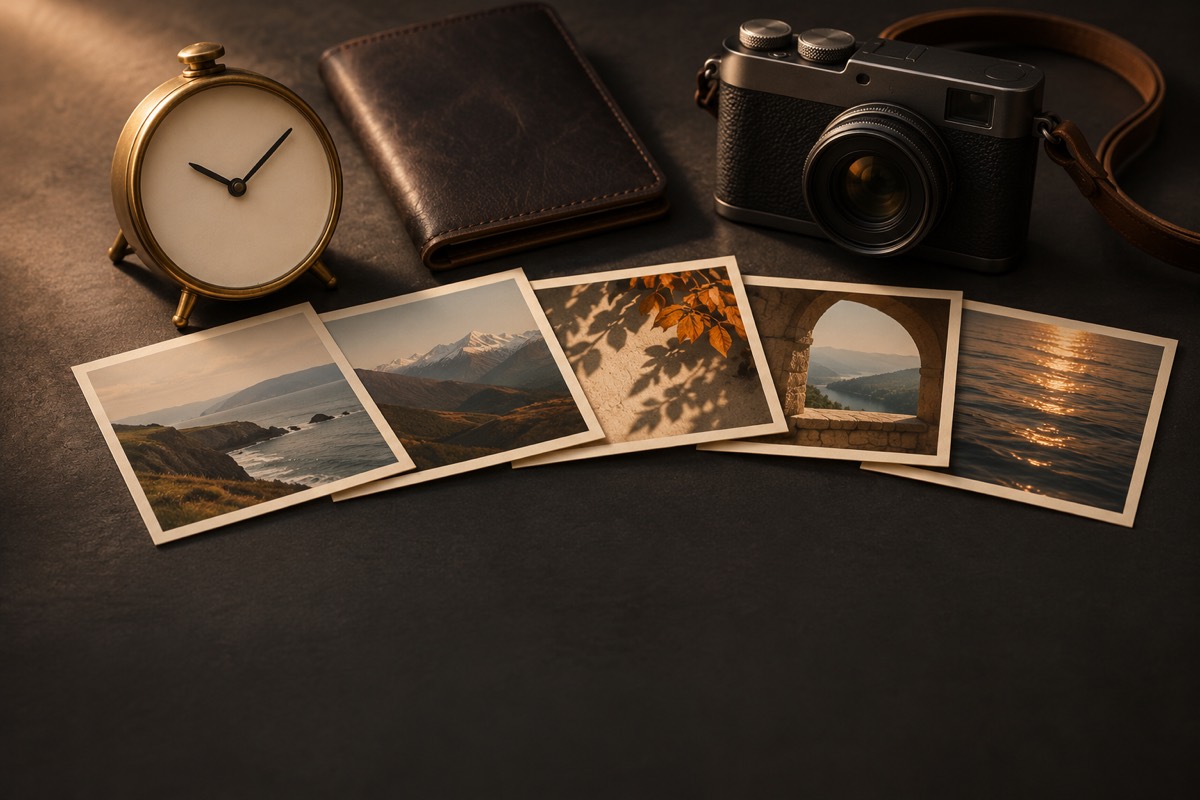
Run it on the photos and enter the hours to move them. A negative number goes back; 24 is a day. It makes copies with the new date and time. Your originals keep their dates.
Add a location to photos that have none
Half of your last trip has no place on it, because the camera had no GPS.

It lists your 10 newest photos with no location (it skips screenshots), all ticked. Untick any taken somewhere else, then type the place. It saves the place as a new version of each photo, and Revert in Photos undoes it. Run it again for the next ten.
Apply the same edits to a batch of photos
You add the same credit, keywords or place to every photo from a shoot, one photo at a time.
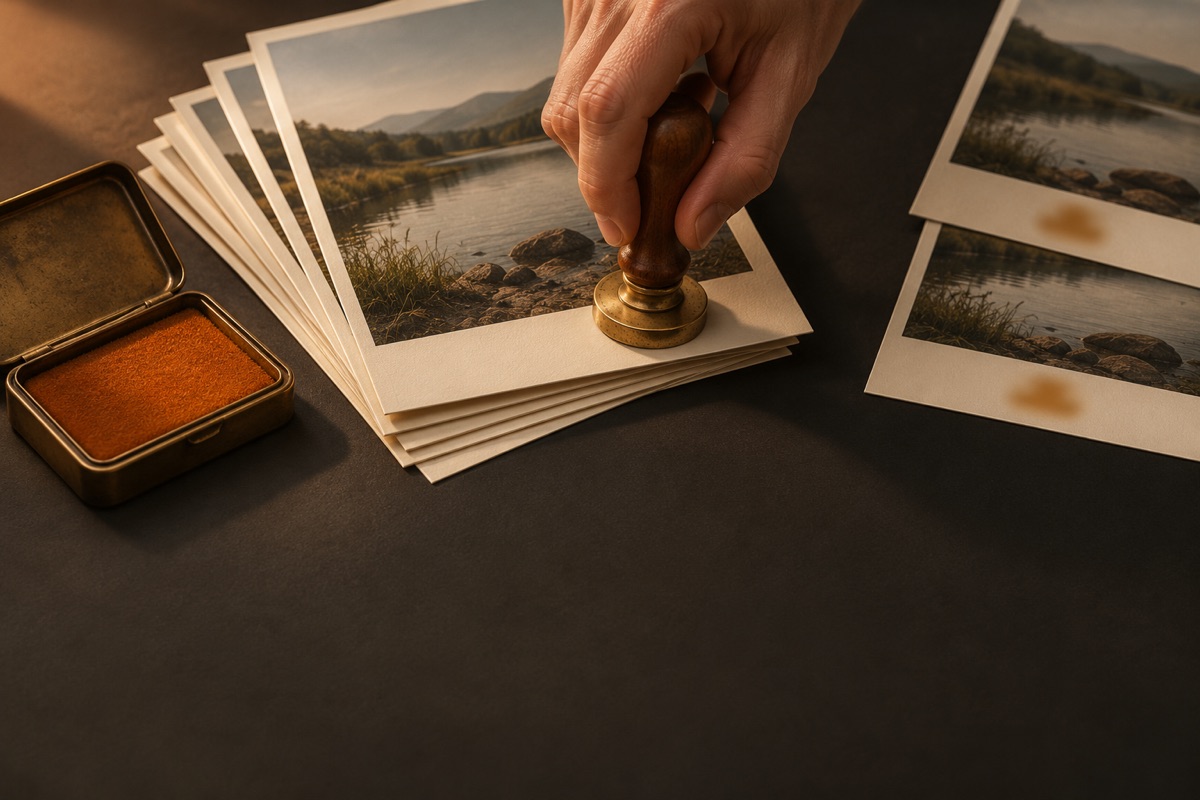
Save the edit once as a template in Photo Investigator. Then select the photos, tap Share and pick Apply Template. It asks which template, makes an edited copy of each photo and opens the share sheet so you can save or send them. Your originals stay as they are.
How to add your own shortcut to the share sheet
Here is Share Without Location built by hand:
- Open the Shortcuts app and tap + to start a new shortcut.
- Search the actions for Photo Investigator and pick Remove Location from a Copy.
- Tap its Images field and choose Shortcut Input.
- Tap the info button and turn on Show in Share Sheet. Where it lists what the shortcut receives, leave only Images.
- Add Apple’s Share action after it, so the copy goes somewhere.
- Name it and tap Done. It now shows in the share sheet of Photos and Files.
The same recipe works with any Photo Investigator action ending “on a Copy” or “from a Copy”, and with read actions such as Get Metadata. Reading is free; saving a change needs Pro.
Limits
Photo Investigator’s shortcuts need an unlocked phone. If you have not bought Pro, a Pro shortcut shows the paywall and changes nothing. Under limited Photos access, the shortcuts see only the photos you shared with the app. For which apps strip location on their own, see which websites remove GPS from photos. To find out which of your photos carry a place at all, see how to see which of your photos have GPS locations inside.
Questions
How do I remove the location from a photo with Shortcuts?
Add Share Without Location, open the photo, tap Share and pick the shortcut. It sends a copy with no location. It needs Pro.
Can a shortcut tell if a photo is AI?
Is It AI? tells you what the file says: an AI label, the generator’s name, Content Credentials. It does not analyze the picture, and finding no label does not mean the picture is real.
Do these shortcuts change my original photos?
Seven never do: they make a copy or only read. Fix Missing Locations does, as a new version that Revert in Photos undoes.
Do I need to pay?
Is It AI?, Snitch Check and Metadata Report are free. Share Without Location, Strip All Metadata, Shift Dates, Fix Missing Locations, Apply Template and Snitch Check’s clean copy need Photo Investigator Pro. More shortcuts are on the shortcuts page as they are ready.

